Installation
Option 1: Desktop Application
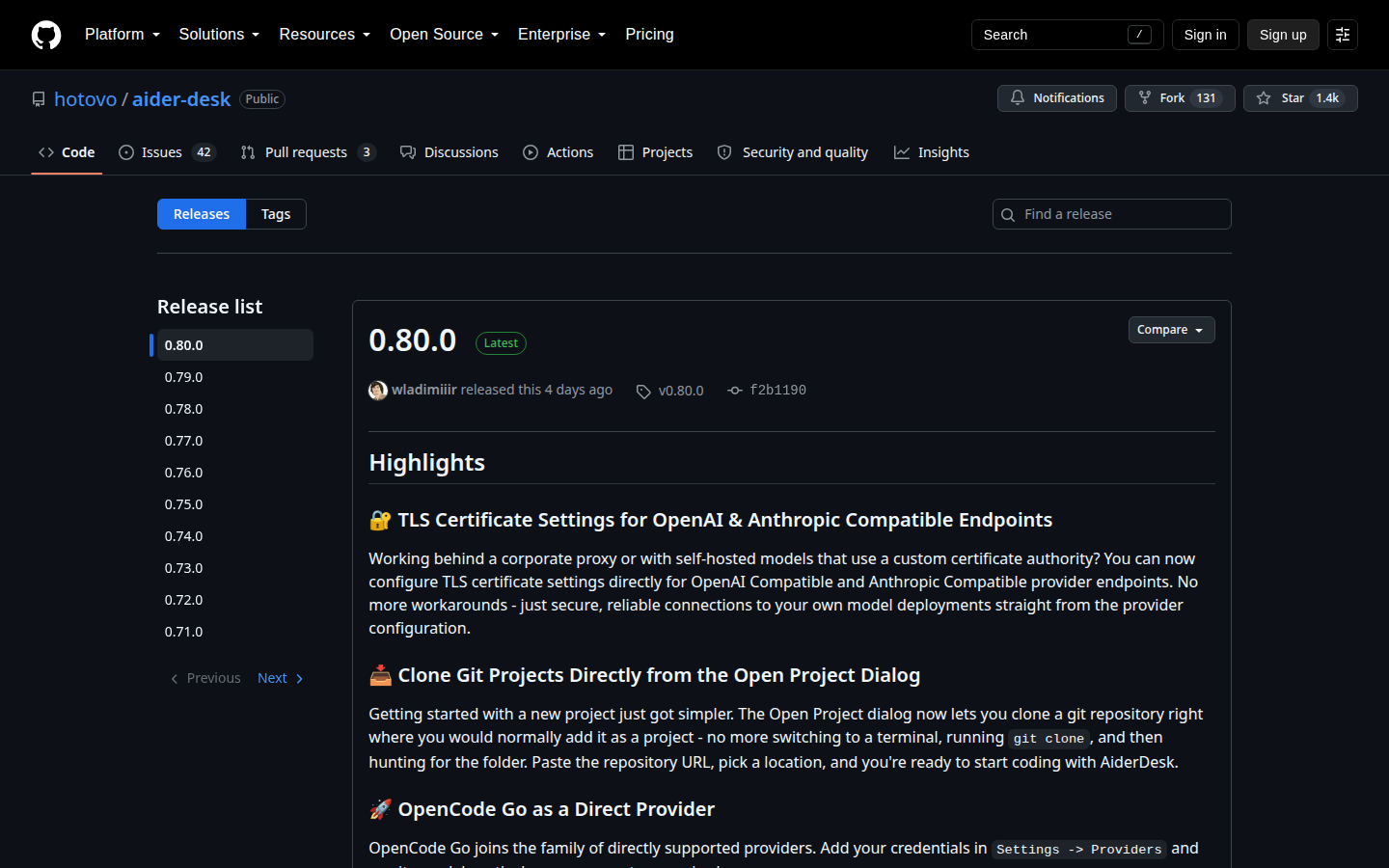
Download the latest version for your operating system from our Releases page:
- Windows: Run the
.exeinstaller - macOS: Open the
.dmgand drag AiderDesk to Applications - Linux: Extract the
.AppImageand make it executable (chmod +x)
Migrating from Hotovo releases (macOS)
AiderDesk has moved to Magiksoft s.r.o., with a new macOS bundle identifier and signing certificate. Existing macOS installations require a one-time manual update:
- Quit AiderDesk.
- Download the latest macOS
.dmgfrom the Releases page. - Open the
.dmgand replace the existing application in Applications.
Do not delete your AiderDesk data or use brew uninstall --zap during this migration. Once the new version is installed, subsequent updates use the new signing identity.
Homebrew (macOS)
brew update
brew install hotovo-aider-desk
Updates are handled from within the AiderDesk application itself — the brew upgrade command will not update your installation.
To uninstall:
brew uninstall hotovo-aider-desk
# optionally also remove all user-data:
# brew uninstall --zap hotovo-aider-desk
Scoop (Windows)
scoop bucket add extras
scoop install extras/aider-desk
Updates are handled from within the AiderDesk application itself — the scoop update command will not update your installation.
To uninstall:
scoop uninstall aider-desk
Option 2: npm (Headless / Browser-Based)
Install and run AiderDesk as a global npm package. This runs the AiderDesk backend service only — you access it through your web browser:
npm install -g @aiderdesk/aiderdesk
aiderdesk
Or run directly without installing:
npx @aiderdesk/aiderdesk
Then open http://localhost:24337 in your browser. See the npm CLI guide for all commands, including readonly server mode.
Option 3: Docker
Run AiderDesk in a container for server deployments or public dashboards. See the Docker guide.
First Launch
On first start, an onboarding wizard walks you through connecting a model and basic configuration. Python dependencies are set up lazily in the background when first needed — see First Launch.